Email Integration for Agents
If you are just getting started and you want OpenClaw to read your Gmail inbox for things like summaries, daily digests, or simple alerts, IMAP is the cleanest place to start.
This setup is simpler than building a full Gmail API integration:
- IMAP gives OpenClaw read access to your mailbox
- Gmail App Passwords avoid using your normal account password
- SMTP can be added later if you also want to use this for sending or draft workflows
For most beginner setups, this is the path that works fastest.
What you are setting up
You are giving OpenClaw access to Gmail through standard mail protocols:
- IMAP for reading email from your inbox
- Optional SMTP for sending mail later
With this in place, OpenClaw can handle workflows like:
- Summarize unread mail
- Produce a morning or evening inbox digest
- Alert you when messages from a person or keyword arrive
- Extract structured information such as receipt vendors or amounts
If you eventually need deep Gmail actions, labels, drafts, or broader Google Workspace access, use the more complete OAuth-based setup in google-workspace-integration. For simple inbox-reading workflows, IMAP is the better starting point.
1. Turn on 2-Step Verification
Gmail App Passwords require 2-Step Verification.
Open your Google Account security settings:
Then:
- Open
2-Step Verification - Turn it on for the Google account you want OpenClaw to read
If you skip this step, Google usually will not show the App passwords option later.
2. Create a Gmail App Password
Once 2-Step Verification is enabled, create an App Password for OpenClaw.
From the same Google Account security area:
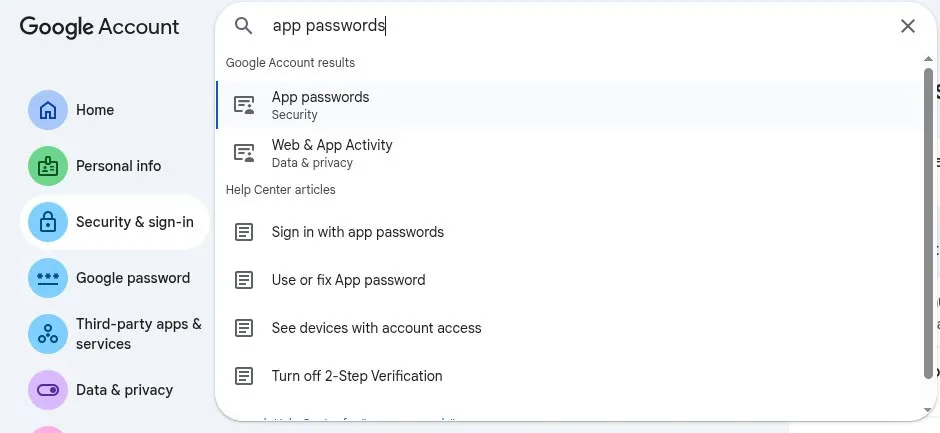
- Open
App passwords - Name it
OpenClaw - Save the generated password
Google will give you a 16-character password. This is the password OpenClaw should use for IMAP and SMTP.
Do not use your normal Gmail password here.
4. Install the imap-smtp-email skill
Inside your OpenClaw machine run the clawhub command to install the imap-smtp-email skill:
openclaw@ubuntu-4gb-hel1-2:~$ clawhub install imap-smtp-email
✔ OK. Installed imap-smtp-email -> /home/openclaw/.openclaw/workspace/skills/imap-smtp-email
As you can see it installed the skill to /home/openclaw/.openclaw/workspace/skills/imap-smtp-email. This skill provides a mail connector that can read and send email using IMAP and SMTP.
Go into that directory and run npm i this should install any email libraries required by the CLI
After that you can run bash setup.sh to configure the connector, it should guide you through entering the IMAP and SMTP settings described in the next section.
5. Use these IMAP settings
When OpenClaw asks for email connection settings, use the following values:
IMAP
- Host:
imap.gmail.com - Port:
993 - Encryption:
SSL/TLS - Username: your full Gmail address, for example
name@gmail.com - Password: the 16-character Gmail App Password
Optional SMTP
If your OpenClaw setup also wants to send email or save drafts through SMTP, use:
- Host:
smtp.gmail.com - Port:
465for SSL or587for TLS - Username: the same full Gmail address
- Password: the same Gmail App Password
6. Test with small prompts first
Do not start with a large workflow. First confirm that OpenClaw can read mail reliably.
Good test prompts:
List the last 10 email subjects from my inbox.Summarize the newest email in 3 bullet points.If you see a receipt, tell me the vendor and amount.If these work, the integration is usually in good shape.
7. Start with one safe automation
The best first automation is small and easy to verify.
Example daily digest:
- Run once each morning, for example at
9:00 AM - Look at unread emails
- Group them into
important,newsletters, andreceipts - Produce a short 2-3 line summary for each item
Once that is stable, you can add more:
- Alerts for specific senders or keywords
- Draft replies for approval
- Moving or tagging messages
- Receipt extraction or expense tracking
Reliability notes
Email integrations fail most often because they are too aggressive too early.
For a stable setup:
- Keep polling intervals reasonable
- Avoid opening too many IMAP connections in parallel
- Prefer IMAP IDLE if your mail connector supports it
- Recheck Google account security alerts if access suddenly stops working
Common failures
Invalid credentials
You probably used your normal Gmail password instead of the App Password.
Too many connections
Your setup or another mail client is opening too many IMAP sessions at once. Reduce concurrency and polling frequency.
It worked once, then stopped
Google may have flagged the login as unusual. Check the account’s security alerts, confirm the login, and avoid overly aggressive polling.
Minimal checklist
Before you call this done, make sure all of these are true:
2-Step Verificationis enabled on the Google account- A Gmail
App Passwordwas created for OpenClaw - OpenClaw is using
imap.gmail.comon port993withSSL/TLS - The username is the full Gmail address
- The password in OpenClaw is the App Password, not the normal Google password
- A basic inbox-read prompt succeeds
At that point, OpenClaw should be able to read Gmail reliably enough for summaries, digests, and simple inbox monitoring.